
The Challenge of Windows Server 2003 Firewall Management
A recurring question in server administration: "How do I properly configure Windows Firewall on my dedicated or VPS server?" Many administrators overlook that Windows Server 2003 SP1 introduced robust firewall capabilities, and fewer still understand how to configure it effectively without disrupting operations.
This guide provides strategic approaches to Windows Firewall configuration—not comprehensive security hardening, but essential foundational practices for business-critical systems.
Why the GUI Approach Fails
Windows Server 2003 includes a graphical firewall interface accessible through the Control Panel. However, I strongly recommend against using it initially. The GUI presents significant limitations:
- Limited exception options (basic services only)
- No granular control over port configurations
- High risk of immediately losing remote access
The most common support request I encounter: "I enabled Windows Firewall and lost Remote Desktop access." This scenario is entirely preventable with proper CLI-based configuration.


Command-Line Management: The Strategic Approach
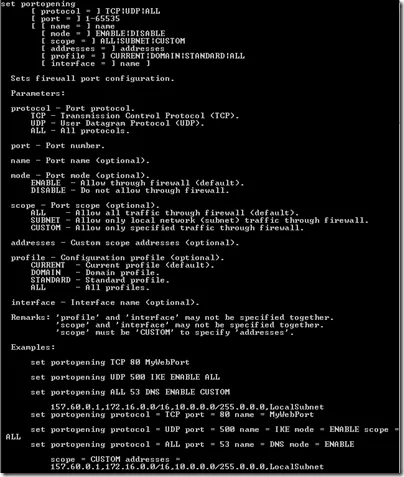
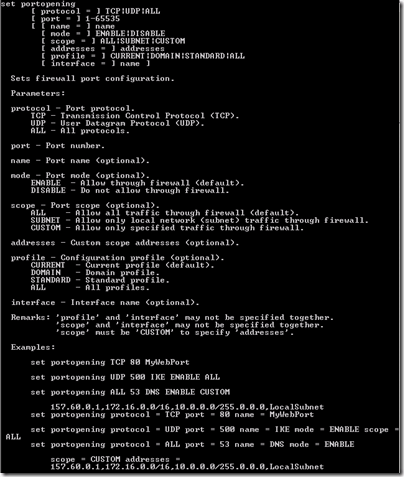
The command-line interface provides comprehensive firewall control. Understanding the Windows Server 2003 firewall architecture is crucial:
Key Limitations to Consider
- Inbound-only filtering: Controls inbound packets exclusively (outbound control requires Windows Server 2008+)
- Port-level granularity: Cannot block specific IPs on individual ports—rules apply globally per port
- Three configuration states per port: Block all, allow all, or allow specific IP addresses
Production-Ready Firewall Ruleset
Based on years of managing production environments, here's my standard ruleset for web hosting servers:
netsh firewall set opmode enable
netsh firewall set portopening TCP 80 HTTP
netsh firewall set portopening TCP 53 DNS-TCP
netsh firewall set portopening UDP 53 DNS-UDP
netsh firewall set portopening TCP 21 FTP-Server
netsh firewall set portopening TCP 220 IMAP3
netsh firewall set portopening TCP 143 IMAP4
netsh firewall set portopening TCP 25 SMTP
netsh firewall set portopening TCP 110 POP3
netsh firewall set portopening TCP 3389 RDP
netsh firewall set portopening TCP 443 HTTPS
netsh firewall set portopening TCP 9999 SmarterMail
netsh firewall set portopening TCP 9998 SmarterStats
netsh firewall set logging droppedpackets=enable
This configuration enables essential services while maintaining security posture. Line 1 activates the firewall, lines 2-13 open required ports for all IP addresses, and line 14 enables comprehensive logging for security monitoring.
FTP Passive Mode Considerations
One caveat: this configuration breaks passive FTP functionality. The solution requires configuring passive FTP on specific port ranges and opening those ranges in the firewall. For a 200-port range (5001-5201), use:
FOR /L %I IN (5001,1,5201) DO netsh firewall add portopening TCP %I "Passive FTP"%I
IP-Specific Port Access
For services requiring restricted access—such as SQL Server management—configure port access for specific IP addresses only. To open port 1433 exclusively for IP 10.5.5.5:
netsh firewall set portopening protocol=TCP port=1433 name=MySQLAccess mode=ENABLE scope=CUSTOM addresses=10.5.5.5
This creates a custom scope limiting access to designated addresses while blocking all other traffic.
Strategic Security Considerations
Critics argue that software firewalls provide limited protection since compromised servers can disable them. However, in a layered security architecture combining network firewalls, intrusion prevention systems, and monitoring solutions, host-based firewalls provide valuable additional protection.
The key is treating Windows Firewall as one component of a comprehensive security strategy, not a standalone solution.
Why This Still Matters
While Windows Server 2003 represents legacy technology, these fundamental principles of systematic firewall configuration remain relevant across modern server environments. The discipline of command-line management, understanding service dependencies, and implementing least-privilege access controls translates directly to contemporary security practices.
For organizations managing mixed environments or maintaining legacy systems, mastering these techniques ensures consistent security posture across your infrastructure portfolio.