
The Business Case for WordPress Caching
WordPress dynamically generates pages through MySQL database calls—a process that becomes a critical bottleneck under high traffic loads. When your content gains viral attention through major platforms like Reddit, industry publications, or news outlets, uncached WordPress sites typically fail catastrophically.
The mathematics are simple: shared database servers cannot handle sudden traffic spikes. The result is either server crashes or hosting providers shutting down your database to protect other clients—both scenarios that damage your business reputation and revenue potential.
Why Static Caching Transforms Performance
Caching plugins like WP Super Cache convert dynamic database queries into static HTML files. This architectural shift delivers three critical business advantages:
- Performance: IIS serves static content exponentially faster than dynamic pages
- Scalability: Dramatically increases concurrent visitor capacity
- Reliability: Reduces database server load and prevents traffic-related failures
Windows Hosting Considerations
PHP on Windows Server gained significant traction through enterprise hosting providers and Microsoft-Zend collaboration efforts. However, most WordPress caching tutorials assume Linux/Apache environments, leaving Windows administrators with incomplete guidance.
WP Super Cache offers superior functionality over basic wp-cache, with near-native Windows support requiring only minor configuration adjustments.
Pre-Installation Risk Assessment
Critical Warning: Initial plugin activation will temporarily break your site. This is expected behavior that enables the creation of configuration files requiring manual editing.
Emergency Rollback Procedure
Should you need to completely disable the plugin:
- Delete the entire
wp-supercachefolder fromwp-content/plugins - Remove
advanced-cache.phpandwp-cache-config.phpfrom thewp-contentdirectory
Installation Process
Plugin Installation
- Navigate to WordPress Dashboard → Plugins → Add New
- Search for "super cache"
- Install "WP Super Cache" (current version at time of writing: 0.9)
- Activate the plugin (errors are expected at this stage)
Windows Configuration Fix
The activation process generates configuration files with incorrect path concatenation for Windows environments. You'll encounter errors similar to:
Warning: include(D:\Domains\domain.net\wwwroot/wp-contentD:/Domains/domain.net/wwwroot/wp-content/plugins/wp-super-cache/wp-cache-base.php) failed to open stream
To resolve this:
- Download
wp-cache-config.phpfrom yourwp-contentdirectory - Locate line 7 (approximately):
define( 'WPCACHEHOME', WP_CONTENT_DIR . "D:/Domains/YOURDOMAIN/wwwroot/wp-content/plugins/wp-super-cache/" ); - Edit to:
define( 'WPCACHEHOME', "D:/Domains/YOURDOMAIN/wwwroot/wp-content/plugins/wp-super-cache/" ); - Remove the
WP_CONTENT_DIR .portion entirely - Upload the corrected file
Cache Activation and Verification
Enabling the Cache
- Navigate to Settings → WP Super Cache
- Select "Caching On"
- Click "Update Status"


Performance Validation
Verify successful implementation through these steps:
- Load your site in a browser
- Refresh the page—it should load noticeably faster
- View page source and scroll to the bottom
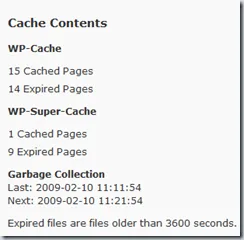
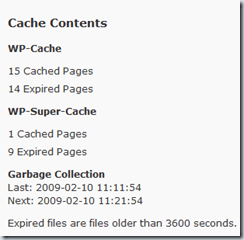
- Confirm presence of cache indicators:
<!-- Dynamic Page Served (once) in 0.429 seconds --><!-- Cached page generated by WP-Super-Cache on [timestamp] -->
Strategic Impact
Successful caching implementation transforms your WordPress site from a database-dependent liability into a high-performance asset capable of handling traffic surges that drive business growth. The configuration effort—while technical—represents a critical infrastructure investment for any serious web presence.
For organizations running WordPress on Windows Server infrastructure, this optimization becomes particularly valuable given IIS's exceptional static content delivery capabilities.