Tidbits and thoughts on webhosting, web applications and just general cool geek crap.
20 Dec
One of my favorite applications is Windows Live Writer. It’s a simple to use WYSIWYG blog editor that I’ve wrote about many times. I’ve been using it for probably over a year now and not too long ago it came out of beta. One of the things I truly enjoy with Windows Live Writer is that it’s extensible with a very easy to use plugin system and because of this I’m going to spotlight a few of my favorite Windows Live Writer Plugins.
This plug-in is actually very clever as it makes use of a wordpress plugin (imagine that, I’m blogging about wordpress) called the thumbnail viewer and it’s self. The plugin creates a cool Polaroid style frame around your image, allows you to tilt the image and also display text below the image.
The application has a very thorough set of options available including the ability to define the size of the ‘large’ image displayed in the lightbox, the background color, the tilt, the font, pretty much you name it and you can control it.
The picture above is that of myself with Rob Howard from Telligent so you can see just what it does.
You can learn more about this great plugin from the author’s website: http://www.brettonstuff.com/index.php/tech/polaroid-style-thumbnails
I absolutely love SnagIt. I’ve used it for years and don’t think I could ever get away with using anything else for my screen captures, it’s a lightweight application that runs in the background and can be called at any time. Using the Insert SnagIt Screen Capture plugin you’re able to add screen captures to your blog posts from SnagIt.
The image here is of my Google Desktop sidebar. What makes SnagIt stand out is that after you capture the piece of your screen you’re able to go into SnagIt and adjust it adding text, highlights, you name it.
You can learn more about the Insert SnagIt plugin from the WLW Gallery: http://gallery.live.com/liveItemDetail.aspx?li=6ba7122b-56aa-4651-a7ab-613359a31986&bt=9&pl=8
How often have you wanted to take a snapshot of a website and share it with your blog visitors? Okay, probably not very often but when you want to wouldn’t it be cool to have a tool to do so? Well there is.

Unfortunately, there’s little control over the image layout and settings but I think this is a work in progress and we’ll see more before long.
This one is available from: http://gallery.live.com/liveItemDetail.aspx?li=1f57bd9b-a692-4593-9e9e-e2962d9c0eee&bt=9&pl=8 and it’s pretty cool. It allows you to insert formatted source code into your blog entry making it easier to read for your visitors below is a snippet of code I found out on the Internet. It supports C#, VB, HTML, JavaScript, MSH and TSQL. It also allows you to include line numbers, a stylesheet and format alternating colors for the lines.
1: private void menuItem1_Click(object sender, System.EventArgs e)
2: {
3: MessageBox.Show(“Hello World. This a tray icon application. Bye!”);
4: }
5: private void menuItem2_Click(object sender, System.EventArgs e)
6: {
7: // exits the application
8: Application.Exit();
9: }
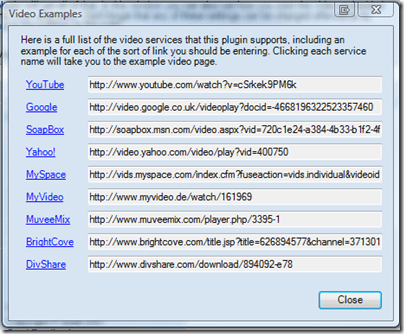
This is the top dog of WLW plugins. It allows you to insert a video from all the major video networks:
and you can embed it such that it starts playing immediately. It takes care of all the crazy tags and code, etc so you just click, copy the url and you’re done.
You can learn more about this plugin at: http://gallery.live.com/liveItemDetail.aspx?li=65584500-3bd3-404b-818a-2cdec6304892&pl=8&bt=9
Those are some of my favorite Windows Live Writer plugins, there’s over 4 pages full of plugins at the Windows Live Writer Gallery but these are ones that I find especially useful and enjoy using. I’ve love to hear what your favorite plugin is and why. In the meantime be sure to visit the Windows Live Writer Gallery frequently to stay up to date on the available plugins. If you’re interested in writing your own plugins check out the WLW Plugin SDK.
12 Dec
It’s been a while since I’ve blogged about anything so I thought I’d toss it out there that Applied Innovations has commissioned the design of 3 wordpress themes and are giving these away for FREE to the wordpress community. As everyone that reads my blog knows I’m a big advocate of wordpress as a blogging platform and appliedi.net fully supports wordpress hosting on our windows servers.
You can learn more about the wordpress themes at: http://www.appliedi.net/blog/2007/12/11/three-free-wordpress-themes/
4 Oct
I’ve enabled MonsterID comment image tags on my blog and discuss MonsterID, it’s use and my blog theme in this article.
MonsterID is a method of generating a unique monster image based upon a certain identifier, usually based on IP address, email address or something similar. It’s used to automatically create a personal avatar image in blog comments and community sites.
You can learn more about it at these places:
What led me to MonsterID was the ASP.NET blog engine: BlogEngine.NET. Recently I was writing a blog post about BlogEngine.NET hosting at appliedi.net and thought one of the coolest features BlogEngine has was MonsterID so I wanted to get it implemented for my own blog.
Implementing MonsterID in my wordpress based blog couldn’t be easier. Scott has a great blog post about MonsterID and has created a MonsterID wordpress plugin for using it.
I happy to say installing Scott’s plug-in was very easy. Simply download it, unzip it and upload the entire contents to your wp-content/plugins folder. Make sure the folder monsterid is world writeable and it should work out of the box. Oh and it does work on Windows too!
Once you’ve enabled the plug-in you’ll want to go into the Options -> MonsterID and verify the test monster is showing up.You can also tweak the background colors, size, clear the monster cache and a few other options from within there. I think it’s great that these images are in fact cached upon creation and happy Scott saw to doing that.
After all of that the next step is adding it to your wordpress theme. Scott’s instructions are as follows:
Find the
comments.phpof your current theme (it should be in the folderwp-content/themes/[currentThemeName]/). Open it up and look for something similar toforeach ($comments as $comment). Inside this loop there should be code that displays the comment author’s name or metadata like<p class="comment-author">or<p class="comment-metadata">. Just before all this enter
<?php if (function_exists("monsterid_build_monster")) {echo monsterid_build_monster($comment->comment_author_email,$comment->comment_author); } ?>If you would prefer to base the monsters on the commentor’s IP address instead of the commentor’s email just replace
$comment->comment_author_emailin the above with$comment->comment_author_IP.You can add CSS for
img.monsteridin your theme’sstyle.cssto adjust the appearance of the images or adjust the size in the MonsterID control panel. You can also clear the MonsterID image cache in the Control Panel.
For my blog I simply replaced the call to generate a gravatar image with a call to create the MonsterID image in the comments.php file of my theme. If you’re wondering about my theme and why some of the blog articles reference other themes, it’s because I tend to change themes pretty regularly however what I’m finding is none of the pre-built themes really do what I want so I’m always hacking them up. My current theme is ILLACRIMO from designdisease. I love their themes and 2 of the last 3 themes I’ve used have been made by them.
For my own blog I am using the e-mail address as the seed for the MonsterID,so your monster is will built around your email address. Here’s a few of the comment monsters I have:
Well, don’t just sit around wondering what you’d look like. Create a new comment post here and see your own monster!
3 Oct
WordPress 2.3 was released on September 25th. This release of WordPress brought some great new features:
Earlier in September Windows Live Writer, Beta 3, was also released. This latest build of WLW brings with it:
Together WordPress and Windows Live Writer make an outstanding blogging platform, WordPress provides one of the most powerful open-source blogging engines available today and Windows Live Writer is hand’s down one of the easiest to use blog publishing tools.
Tagging isn’t new to WordPress bloggers as most have been using Jerome’s Keyword Tags or Ultimate Tag Warrior but now this functionality is built in. Looking for more information on tagging in WordPress 2.3 and how to implement some of my favorite features that used tagging brought me to the following great articles:
These two articles do a good job of explaining tags and how to use them in your own themes. Since this is such a new feature, few themes support them today but it’s easy enough to implement them in your own blog, as I’ve done. In my blog I’ve added tags at the end of the blog article:
I still need to clean up how it’s displayed but you get the idea. You’re probably wondering why tags are so important. For me tags provide a way identify the key topics of an article and later when searching your blog for articles on particular topics you can search through the tags.
The new tagging feature also supports a user customizable tag cloud as seen on my blog:
For me, the tag cloud helps you identify what the common themes of a blog are and just what topics the author tends to write about. The code to implement my tagcloud would seem to be complex, right? Fortunately, is very simple:
<?php wp_tag_cloud(’smallest=8&largest=16&’); ?>
You’ll notice all these tags allow you to really identify what articles are related. To take this a step further, I’m using a plugin called: WP 2.3 Related Posts, to identify related articles on each blog post’s page:
By using this plug-in when a visitor comes to your site, say through a search engine, they’ll have an easily available list of related articles on the same topic that they can review. Thus making your blog more ’sticky’ and visitor friendly.
So far I’ve only talked about WordPress tags and only mentioned Windows Live Writer. Well, the latest couple betas of Windows Live Writer really supported tags but we were crippled on how we could implement them. This has all changed. Ruhani Rabin, provides a great tutorial on how to enable tags support in WLW for WordPress:
In a nutshell you’ll download the wlwmanifest file and some images, upload it to your blog and then have WLW update your blog features. This will enable the new tagging features.
To add tags to your new blog post from within WLW, you’ll find the dialog box hidden at the bottom:
20 Feb
I stumbled on this the other day looking over a web forum and thought it was a pretty neat ‘gadget’. I don’t know how useful it is but I’m all for cool.
Using snap.com’s Snap Preview feature and the wordpress plug-in snap preview anywhere.
You’ll see a little icon:
If you mouse over the link or the icon next to one of my links a little popup thumbnail of the website linked to will come up, then of course you can click on the link or the thumbnail to redirect to the website.
Useful? you ask. I don’t know. But cool, oh yeah!