Windows Web Hosting, Web Technologies, etc
The Cool Stuff
Adding W3C Validation to WebMatrix
Jul 8th
One of the extremely cool features with IIS Developer Express is that you can extend it with the same modules you’d extend IIS7.5 with. Examples of popular modules are the IIS SEO Toolkit, FastCGI and WinCache.
Which are all included already. I’ve been looking for a module to add to it as an example that would bring value to web developers and came across a great post in Carlos Aguilar Mares blog titled: IIS SEO Toolkit and W3C Validation Service and I thought, That’s it! That’s a feature we could extend WebMatrix with that would bring value to web developers within the WebMatrix tool that is a perfect fit for the dev environment WebMatrix provides you.
How Carlos did it for IIS Servers
First if you haven’t visited Carlos’s blog, I recommend you do so (it’s another of the awesome IIS blogs). His article: IIS SEO Toolkit and W3C Validation Service talks about a sample project he created that basically takes your web content, runs it through the W3C HTML5 markup validation service and then returns a report of errors and warnings. The article was written around the current version of the IIS SEO Toolkit available for production, assumes you’re installing it on an IIS7 server and that you’re using the same version of IIS SEO Toolkit he’s using.
Unfortunately, we’re not using the same version of the IIS SEO Toolkit and not installing it on an IIS7 server but he was kind enough to give us the source so we’re good to go!
WARNING: In no way should I be confused as a professional programmer. I don’t know what I’m doing and if you follow the instructions from this point forward, proceed at your own risk.
How to add Carlos’s Extension to WebMatrix
We’re going to take 4 steps:
- Convert the project to .NET 4.0 (VS2010 does this for us)
- Recompile the DLL to use the same binaries for the Microsoft.Web.Management.SEO.Client and Microsoft.Web.Management references.
- Add the new DLL to the GAC
- Add a reference to the new DLL in the administration.config file for IIS Developer Express.
1. Converting the project to .NET 4.0.
This was the easy part. You’ll download the project, open it in VS2010, let it convert the project to VS2010 and then just go to Project –> SEOW3Validator Properties and change the Target framework.
While we’re in here, you should also update the Build Events. Carlos has it set to register the new DLL in the GAC and that’s throwing an error for me so I just removed the line by going to Build Events –> ‘Post-build event command line’ and removing the code in that box.
2. Update References and Recompile the DLL
There’s a reference to Microsoft.Web.Management and Microsoft.Web.Management.SEO.Client as shown below
We’ll delete those two references and then we’ll copy over these two DLL’s from our WebMatrix install, they can be found in:
“C:\Program Files (x86)\Microsoft WebMatrix”
(I actually copied over all of the Microsoft.Web.Management.* dll’s when I did mine)
once you’ve added these references back in pointing to the DLL’s where you downloaded them to (I put them in the project root folder and then just used the browse option to find them:
Then I recompiled the project and it compiled with 3 warnings all related to Microsoft.Web.Management.SEO.Crawler.Violation.Violation being obsolete.. but they were warnings and it compiled! WORKS FOR ME!
3. Add the new DLL to the GAC.
I used xcopy for this. I created a new folder:
C:\Windows\assembly\GAC_MSIL\SEOW3Validator\1.0.0.0__995ee9b8fa017847
and copied the DLL I just created to there. Only the SEOW3Validator DLL I created. If you don’t want to create this DLL yourself, you’re welcome to download the one I compiled, but you’re using it at your own risk and if you break something, blow up your computer or cause nuclear fallout, it’s your own fault for listening to me!
My DLL can be downloaded from here: SEOW3Validator-Jess.zip.
4. Add a reference in the Modules section of the administration.config file
This file can be found in:
C:\Program Files (x86)\Microsoft WebMatrix\config
You’ll open it up, look for the line: </moduleProviders> and just before that line, add this:
<add name="SEOW3Validator"
type="SEOW3Validator.SEOW3ValidatorModuleProvider, SEOW3Validator, Version=1.0.0.0, Culture=neutral, PublicKeyToken=995ee9b8fa017847" />
and then save the file.
That’s it, Let’s see it in action!
Now all we have to do is fire up WebMatrix, go to one of our projects and then run an SEO report just like we’d normally do:
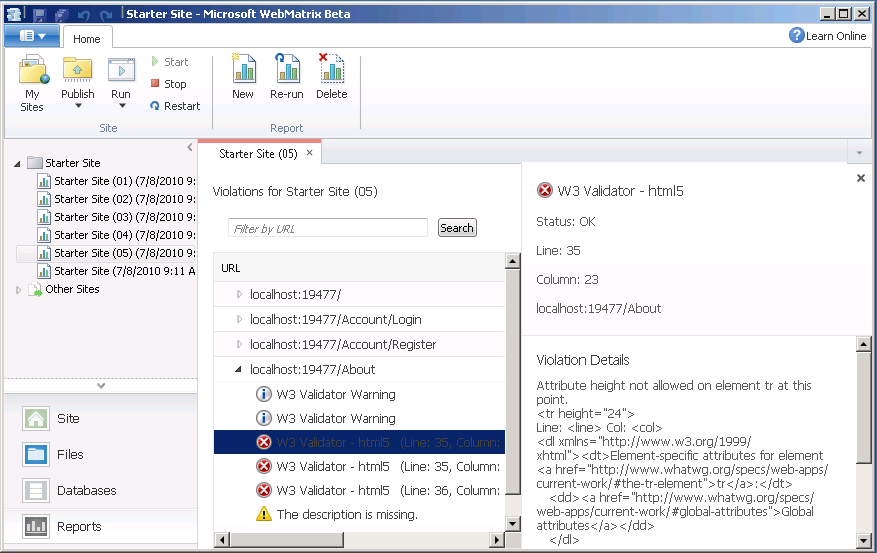
This fires up our site in IIS Developer Express and then sends each of the pages over to the W3C Validator a page at a time with a 1.5second delay between each page. After it’s done you’ll see the SEO report including the W3 Validator errors and warnings:
Where do we go from here?
Well hopefully someone finds this useful and takes up the project to extend it even further. I’d love to see this type of extension made a part of the WebMatrix tool actually, I think it’s a perfect component for it.
I hope you found my little article helpful. I’ve seen a lot of comments about WebMatrix and how it’s geared towards being a project for non-coders, noobs and ‘hobbyists’ (and most say how it is going to fail) but I don’t think that’s the case at all! Although it will allow that class of developers to use the tools and build a better web, it’s going to be equally useful for the seasoned developer. Best of all, it’s going to be useful for you whether you build your sites in custom .NET, custom PHP, in the new ASP.NET Web Pages or based off of open source applications like WordPress and DotNetNuke.
As I mentioned, I’m not a professional programmer but I considering programming (be it PHP, C#, VB, Perl, Bash Shell) a tool for the toolbox and I think if you’re a professional developer or designer WebMatrix should be another tool in your toolbox because it’s certainly one in mine!
Introducing WebMatrix a new way to publish
Jul 6th
I’m excited to announce that Applied Innovations has partnered with Microsoft and is providing free beta hosting for WebMatrix users. If you’re not familiar with WebMatrix, (that’s probably because it was launched less than an hour ago), let me bring you up to speed.
WebMatrix is a new, easy to use tool from Microsoft that integrates a web server, a file based database server, the web application gallery and as ScottGu put it: “A new view-engine option for ASP.NET that enables a code-focused templating syntax optimized around HTML generation” (that’s fancy talk for you can embed ASP.NET commands right inside your HTML markup).
What makes WebMatrix Cool?
So WebMatrix is one of those tools that makes building new websites for guys like me really easy. You see, I can’t code C# to get save my life (I try but I realize it’s a hack job). What I can do though is take an off the shelf product like WordPress and make it pretty bad ass!. That’s what WebMatrix will help me do.
Everyone knows I love WordPress. It’s one of those tools let’s a guy like me throw up a quick website and make it look really professional. A great example of this is, www.terryhoffconstruction.com. Terry’s my cousin and builds beautiful homes for a living. His previous website became dated and was difficult for them to manage. So I thought “Hey, we can throw a nice WordPress theme on that site, a couple modifications and have a really nice, professional website” and thus 2 hours later we had Terry’s new website built, deployed and ready to go live. I’m lucky because I have access to 2000 web servers and just have to spin up a new site or a new VPS server and can build, test and deploy a site like this in no time. But for someone that doesn’t have unlimited access to a thousands of servers, it’s not so easy.
That’s where WebMatrix comes in for you and why it’s cool. WebMatrix will install the IIS Developer Express server for you, connects to the Web Application Gallery (Part of the WebPI) and let you build a new website on any of a number of open source applications. If you don’t have something that’s required for your particular application (like MySQL or PHP installed) no worries, it will go out download it, install it and configure it all for you with just a click or two. Then you’ll be able to build a new website on your local machine in no time! But let me show you.
Building a local WordPress site with WebMatrix
When you start WebMatrix you’ll get a few options as seen below:
I’m going to open to install a site from the Web Gallery and it’s going to give me a list of over 2 dozen different applications I can install:
I’m going to build a WordPress site so I highlight WordPress and click next and this brings me to a screen that tells me what I’m missing (I’ve already installed PHP and MySQL on my dev machine otherwise it will let me know I needed to download and install those too):
After I click “I accept”, it goes out, downloads the installation pack and then asks me for some application specific entries (in this case, it’s my MySQL database info):
Runs for a little while
and then .. BA-BAM!! All done:
And see that installer log? If it runs into any problems, you can view the log and see where it ran into a problem (like if you typed the wrong MySQL root password .. not that I did that before or anything
)
Now that it’s built my screen looks like this
and if I click on the link http://localhost:38623 there I will see my wordpress site:
Run through the wizard and my new WordPress site is ready to build out locally. Now I can add my themes, my plugins, test it out, make sure everything is ready go and then when I’m done locally go ahead and deploy it.
Deploying my WordPress site with WebMatrix
Before I can deploy my site, I’ll need WebMatrix Hosting. I’m going to head over to http://www.appliedi.net/webmatrix and signup for a free WebMatrix hosting account. After I signup I’ll get an email with my information. Since I plan to connect my WordPress site to a MySQL database I’ll need to log into my control panel and create the MySQL database first (don’t worry instructions on how to do all of this is included in the welcome email).
Then I’m going to start the deployment process. First thing I’m going to do is select the configure publishing settings by click on the arrow below the publish icon:
Then I’ll review my Welcome email with instructions on how to publish using Web Deploy:
I’ll also want to go ahead and publish my Database so I’ll enter my connection string:
As I was instructed to do in the welcome email:
So my entire screen looks like the below image:
I’ll click the “Validate Connection” to make sure my publish is going to happen correctly. and then click the Publish button.
It’s going to check and see what files need to be updated:
And then I’ll tell it to publish everything INCLUDING the MySQL database (let’s see your other web editor do that for you!)
After I click publish it starts doing it’s work:
And then in a few minutes… My publish is completed
and if I click the link…
My WordPress site is installed and ready to go.. But don’t just take my word for it. Go check it out yourself: http://testall.web01.appliedi-labs.net/
Turning Windows 7 into a Wi-FI Access Point (for free!)
Apr 26th
So I’ve become extremely fond of my iPad. I think it’s the future form factor for ‘sofa surfing’ (that’s web surfing from your sofa while watching TV). I just checked into my hotel here in Bellevue for the Microsoft Hosting Summit and wanted to get my iPad online. The problem only wired internet was included in the room rate and the ipad is only wifi.. what to do.. So I started searching for software to convert my laptop into a wifi bridge so I could connect to it to connect to my in room wired connection. I did find: Connectify: http://www.connectify.me
But it wasn’t working for my laptop (I run Windows 7 x64 and there seems to be some problems with the 64 bit version of Windows driver support).
Anyway, a great blog post from Steven Bink walked me through the basics: http://bink.nu/news/windows-7-as-an-wifi-accesspoint.aspx
I did run into a couple problems where I had to reset my wireless card to get it to work correctly and first time through I missed the command to actually turn on the hotspot (: netsh wlan start hostednetwork) but once I got that turned on. My ipad was able to ID it and I’m now able to relax away from the desk and still watch my emails.
Enjoy!
In air review of virgin America and my iPad
Apr 24th
I’m currently in seat 10a on my flight to San Francisco abroad virgin America and am 38228ft above Austin traveling at 430mph and thought what a great time blog. Well first let me say this is the greatest flight experience ever!
We arrived at8 am for our flight only to see the lines at southwest and continental long enough to tell us this is going to be rough little did we know it wasn’t the same at virgin. I will post pics when we land as lm blogging from the iPad.
Ok I’m not a fan of this touch typing stuff so I will finish this up soon enough butbthis is a great experience
Installing Windows 7 From a USB Thumb Drive
Jun 23rd
My most popular blog post is about installing Windows 2008 from a USB thumb drive. Over the weekend I decided to upgrade my Laptop from Windows Vista to Windows 7 and used the same instructions to do that upgrade. So the instructions for:
- Installing Vista from a USB Thumb Drive
- Installing Windows Server 2008 from a USB Thumb Drive
- Installing Windows 7 from a USB Thumb Drive
are all the same: http://jesscoburn.com/archives/2007/10/15/installing-windows-2008-via-usb-thumbdrive/